更新中


iPhone Screenshots



iPad Screenshots





說明
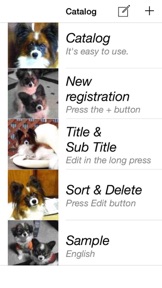
Catalog allows you to easily create a catalog using photos from the Camera Roll.
[ Features ]
(1) You can easily create a catalog of vertical display.
(2) You can copy and use the data in the Catalog on your other iOS devices using file sharing function of iTunes.
[ How to use Catalog - Basic ]
The first is the edit mode. You can change the view mode in the Setting.
Catalog transitions in the following order.
Title screen --> Thumbnail screen --> Photograph screen
(1) Startup the Catalog. In the Title screen press the Add (+) of the top right to create a BOOK. You can enter a title.
(2) Touch the title of the BOOK, and then transition to the Thumbnail screen.
(3) In the Thumbnail screen you press the Add of the upper right corner (+), you can select a photo of your iOS device.
(4) Touch thumbnail image for transitioning to the Photograph screen.
(5) In the Photograph screen you touch Photos. The Information view is displayed. You can enter text information after you touch the information frame. Finished inputting text, you touch the outside the frame. The text will be saved.
(6) By clicking on the edit button of upper right, the setting view for the information view is displayed.
(7) After edit for Catalog, you can change to Browse mode from Edit mode. Setting of iOS --> Catalog --> EditMode(Off)
[ How to use Catalog - Advanced ]
(1) In the Title screen (Edit mode)
When you press the Edit button of the top right, you can delete or sort the list.
Press the title and hold it more than 3 seconds. You can edit the old title and register new title.
(2) In the Thumbnail screen (Edit mode)
Press and hold the thumbnail image more than three seconds.
Delete button (X) is displayed on the thumbnail image. At that time you can delete or move the thumbnail image.
(3) In the Photograph screen (Edit mode & View mode Common)
You can view many photos by flick, or using the left and right buttons at the bottom of the screen.
You can display the information view, by touching the photo, or the magnifying glass button of the bottom of the screen.
You can expand the photo by pinch out(spread with two fingers).
If the number of characters in the information view is over the frame, You can scroll the text.
[ First-time users of file sharing ]
(1) Connect your iPhone/iPad to Mac/PC and launch iTunes.
(2) Select your iOS device and click the "Apps" tab. (Depending on the screen, you may need to scroll down to the bottom of the page.)
(3) Select Catalog under "File Sharing" at the bottom left of the screen.
(4) You can save your Catalog.db from the bottom right of the screen into your MAC/PC, or overwrite your Catalog.db from your MAC/PC into the bottom right of the screen.
[ Important - Please read carefully - ]
The first time you launch the app, you'll see the message "Catalog would like to access to your photos". Tap "OK".
If you select "Don't allow", the app won't be able to access to your Camera Roll and will fail to work properly.
iOS requires photo album access permissions for any app.
Only the first time you can't include video, because above message doesn't show for video.Please use photo only at first time.
If Catalog doesn't work, you will need to grant the app permission to access your device's photos.
Settings --> Privacy --> Photos --> Catalog (ON)
Operating speed is affected by the free memory space of your iOS device. When Catalog doesn't work well or extremely slow, please twice touch the Home button, so you can free up memory quit the unnecessary apps, or restart your iOS device.
[ Others ]
YouTube - You can easily create a Catalog
http://youtu.be/D2ltxTzWavo
Official Support Site
http://yamamotoyamato.blogspot.com
此版本中有什麼更新? (1.2)
Compiled for iOS13
資訊
開發人員
類別
版本
1.2
大小
6.2 MB
Game Center
否
VPP Device Licensing
是
喜好程度
分級:4+
相容性
iOS 13.0 或更新版本
裝置
iPhone 5s, iPhone 6, iPhone 6 Plus, iPhone 6s, iPhone 6s Plus, iPhone SE, iPhone 7, iPhone 7 Plus, iPhone 8, iPhone 8 Plus, iPhone X, iPhone XR, iPhone XS, iPhone XS Max, iPhone 11, iPhone 11 Pro, iPhone 11 Pro Max, iPhone SE(第 2 代), iPhone 12, iPhone 12 Pro, iPhone 12 Pro Max, iPhone 12 mini, iPhone 13, iPhone 13 Pro, iPhone 13 Pro Max, iPhone 13 mini, iPhone SE(第 3 代), iPhone 14, iPhone 14 Plus, iPhone 14 Pro, iPhone 14 Pro Max, iPhone 15, iPhone 15 Plus, iPhone 15 Pro, iPhone 15 Pro Max, iPhone 16, iPhone 16 Plus, iPhone 16 Pro, iPhone 16 Pro Max, iPhone 16e, iPad(第 5 代)Wi-Fi, iPad(第 5 代)Wi-Fi + Cellular, iPad(第 6 代)Wi-Fi, iPad(第 6 代)Wi-Fi + Cellular, iPad Pro, iPad Pro (Cellular), iPad Pro(9.7 英吋), iPad Pro(9.7 英吋)(Cellular), iPad Pro 12.9 英寸(第 2 代), iPad Pro 12.9 英寸(第 2 代) Wi-Fi + Cellular, iPad Pro(10.5 英寸), iPad Pro(10.5 英寸) Wi-Fi + Cellular, iPad Pro(11 英寸), iPad Pro(11 英寸) Wi-Fi + Cellular, iPad Pro 12.9 英寸(第 3 代), iPad Pro 12.9 英寸(第 3 代) Wi-Fi + Cellular, iPad Air, iPad Air (Cellular), iPad Air 2, iPad Air 2 (Cellular), iPad Air(第三代), iPad Air(第三代) Wi-Fi + Cellular, iPad mini Retina, iPad mini Retina (Cellular), iPad mini 3, iPad mini 3 (Cellular), iPad mini 4, iPad mini 4 (Cellular), iPad mini(第 5 代), iPad mini(第 5 代)Wi-Fi + Cellular, iPad(第 7 代)Wi-Fi + Cellular, iPad Pro(11 英寸,第 2 代), iPad Pro(11 英寸,第 2 代)(Wi-Fi + 行動網路), iPad Pro(12.9 英寸,第 4 代), iPad Pro(12.9 英寸,第 4 代)(Wi-Fi + 行動網路), iPad Air(第四代)(Wi-Fi), iPad Air(第四代)(Wi-Fi + Cellular), iPad(第 8 代)Wi-Fi, iPad(第 8 代)Wi-Fi + Cellular, iPad Pro(11 英寸,第 3 代), iPad Pro(11 英寸,第 3 代)(Wi-Fi + 行動網路), iPad Pro(12.9 英寸,第 5 代), iPad Pro(12.9 英寸,第 5 代)(Wi-Fi + 行動網路), iPad(第 9 代), iPad(第 9 代)Wi-Fi + Cellular, iPad mini(第 6 代), iPad mini(第 6 代)Wi-Fi + Cellular, iPad Air(第 5 代), iPad Air(第 5 代) Wi-Fi + Cellular, iPad Pro(11 英寸,第 4 代), iPad Pro(11 英寸,第 4 代)(Wi-Fi + 行動網路), iPad Pro(12.9 英寸,第 6 代), iPad Pro(12.9 英寸,第 6 代)(Wi-Fi + 行動網路), iPad(第 10 代), iPad(第 10 代)(Wi-Fi + 行動網路), iPad Air 11 吋(M2)Wi-Fi, iPad Air 13 吋(M2)Wi-Fi, iPad Air 13 吋(M2)Wi-Fi + 行動網路, iPad Pro 11 吋(M4)Wi-Fi, iPad Pro 11 吋(M4)Wi-Fi + 行動網路, iPad Pro 13 吋(M4)Wi-Fi, iPad Pro 13 吋(M4)Wi-Fi + 行動網路, iPad mini(A17 Pro)Wi-Fi, iPad mini(A17 Pro)Wi-Fi + 行動網路, iPad(A16,Wi-Fi), iPad(A16,Wi-Fi + 行動網路), iPad Air(11 吋,M3,Wi-Fi), iPad Air(11 吋,M3,Wi-Fi + 行動網路), iPad Air(13 吋,M3,Wi-Fi), iPad Air(13 吋,M3,Wi-Fi + 行動網路), iPod touch (第六代), iPod touch (第 7 代)
語言
日文, 英文
App Store:評等
評分與評論
0.0/5 (無評分)
App Store:評論
無條目